Introducing the upgraded Files widget: faster, easier, and more powerful than ever
We have renamed our OneDrive widget to Files widget because we have made a lot of improvements to it. It's now easier than ever to access the files you need.
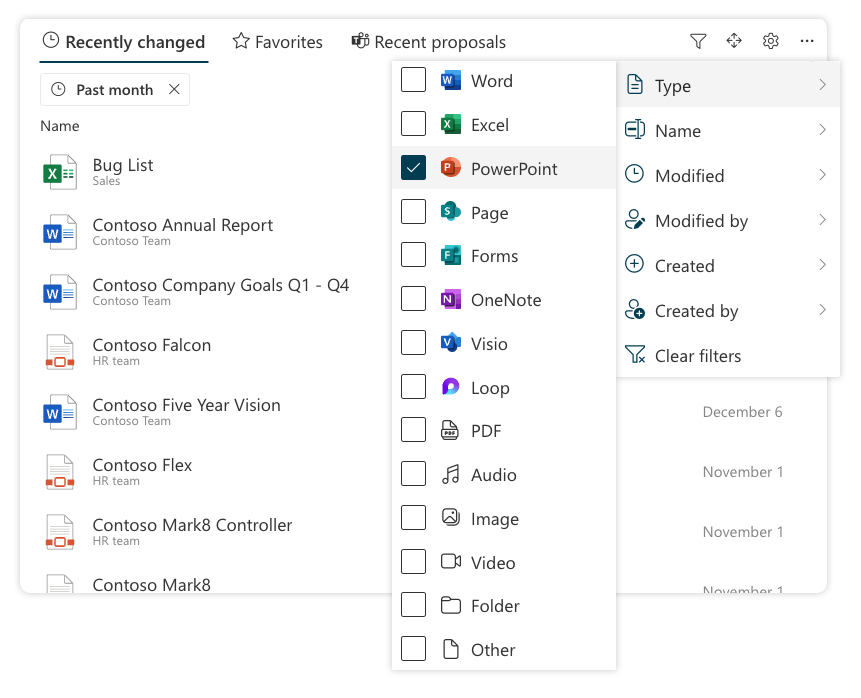
Quick Filter
The new filter icon in the widget header lets you easily search for files within a tab. You can filter your results by Type, Name, Modified, Modified by, Created, and Created by. To remove a filter, use the small visual representation of the filter, located just above the content.

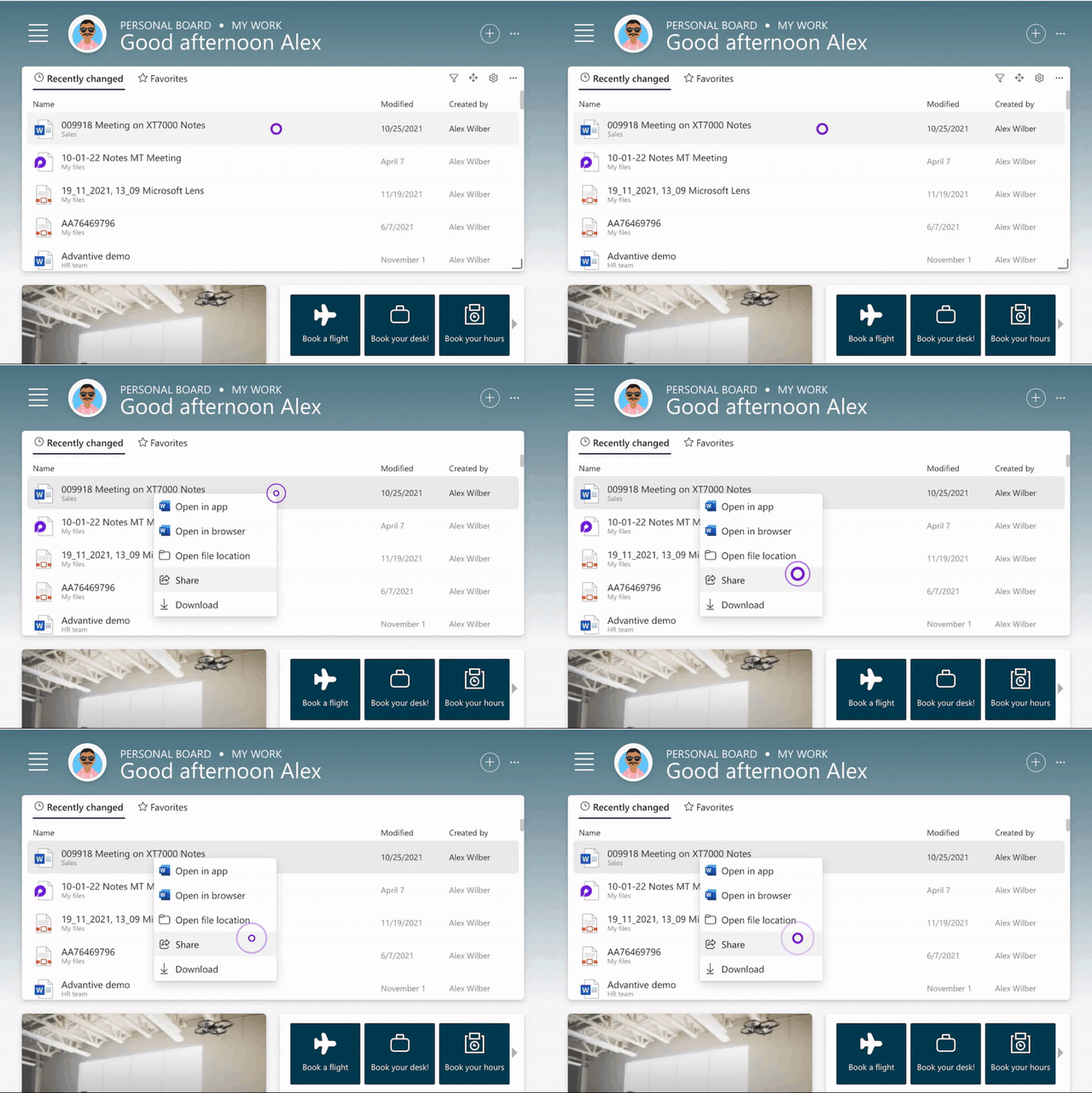
File menu
Clicking on a file brings up a menu with options to edit, share, locate, or download the file.
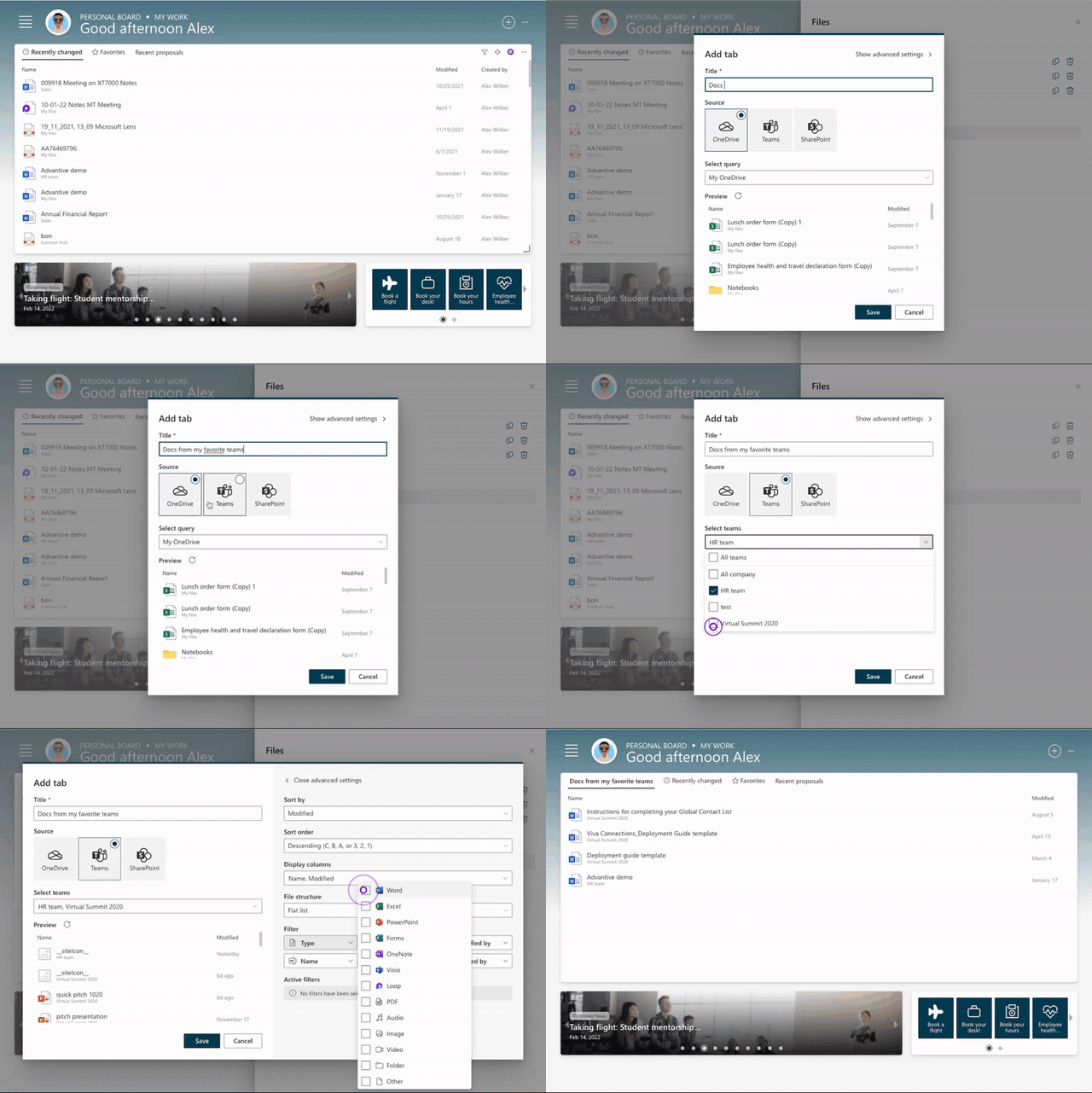
Add a tab and change the order
Your organization can offer multiple tabs, each with its own unique query to help you access the right files. If there are preconfigured tabs, you can add them through the widget settings. If you want to specify the order of your tabs, you can drag them into the desired order.

Add your own tab
By adding your own files tab you are able to define a custom query and access the files you need on a regular basis. To do this, open the widget settings and select "Add tab". You can also copy an existing tab and define your own unique query.
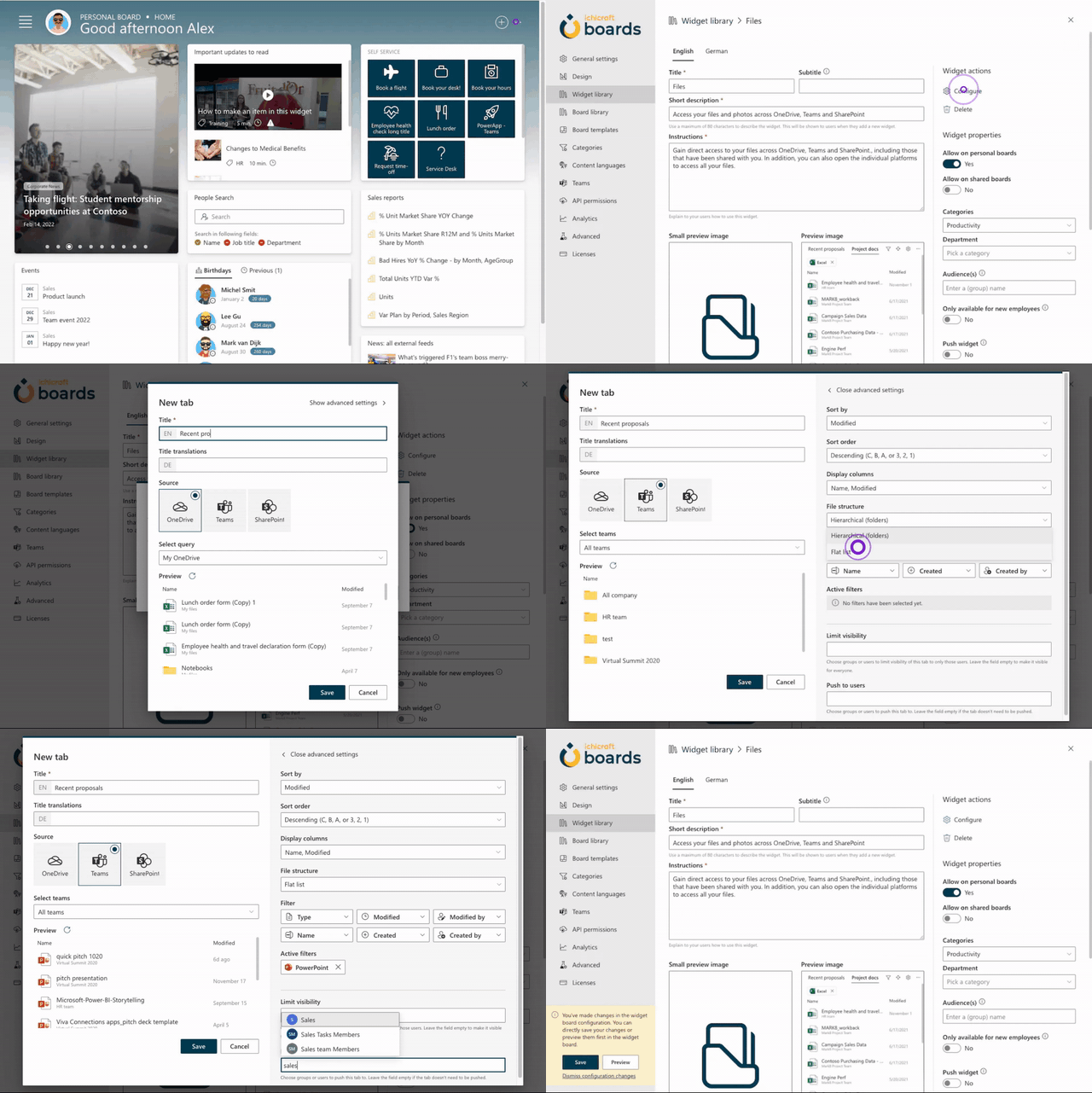
Add preconfigured tabs for your users (Admin only)
As an administrator, you can create preconfigured tabs to help your users easily access their most frequently used documents. By targeting these tabs to specific audiences, you can avoid clutter and help your users quickly find the content that's most relevant to them.
If you have any ideas or suggestions for improvement, please let us know here.
7